2. Primary Screening
2.1. Instructions for Title-Abstract Screening using Rayyan
2.1.1. What is title-abstract screening?
After a literature search is conducted in the database(s) of interest, the references are imported into a reference manager and de-duplicated. Then, each reference is screened for inclusion in the review. To expedite the screening process, screening is generally conducted in two phases: title-abstract screening, and full-text screening.
Title-abstract screening is the process of reviewing studies for inclusion based solely upon their title and abstract. Title-abstract screening allows reviewers to rapidly screen out irrelevant references, leaving fewer to retrieve full-text. Once the full-texts of the references included during the title-abstract phase are retrieved, the references are re-screened to determine their ultimate inclusion in the review.
As a reviewer, it is your job to decide, based on the criteria provided, whether a study is potentially relevant, and therefore should be included, or likely irrelevant, and should be excluded.
2.1.2. What software do we use for title-abstract screening?
The systematic review team at PHAC uses DistillerSR, through which the entire review process can be completed.
For the initial search, we completed the screening using an Excel spreadsheet.
For our updated search, we chose Rayyan [1] – a free, online screening tool – to complete title-abstract screening, because it offered the best combination of data managment and collaboration features at no cost.
Other screening tools we considered included: abstrackr, Covidence, and DistillerSR. The former was rejected because of difficulties importing bibliographic information from RefWorks, while the latter two were rejected due to cost-prohibitive pricing structures.
| [1] | Ouzzani M, Hammady H, Fedorowicz Z, Elmagarmid A. Rayyan-a web and mobile app for systematic reviews. Syst Rev. 2016;5(1):210. Published 2016 Dec 5. doi:10.1186/s13643-016-0384-4 |
2.1.3. Sign up for a Rayyan account
If you do not already have an account at Rayyan (created during the onboarding process), create one on the sign up page. You will not be asked to create a password during sign up; instead, you will be sent a verification link to confirm your email address that will allow you to create a password.
Note
Rayyan will ask for an affiliation; the affiliation provided does not need to match your collaborators.
2.1.4. Select a review
When you initially sign in to Rayyan, no reviews will be available. You can create a new review in the ‘My Reviews’ tab, or join an existing review in the ‘Collaboration Reviews’ tab.
If you signed up for Rayyan during the onboarding process, you should have access to the reviews within one to two days. If you signed up seperately, or do not have access after several days, contact the Literature Search Director for access.
2.1.4.1. Pretest
The first stage of the review process is the pretest. The pretest serves to allow the reviewers to become familiar with the software and decision process, and to evaluate the training materials and reviewer agreement.
The pretest consists of 50 articles, and is designed to highlight any problems with the review protocol or software. Some references with established relevancy (i.e. are known to contain relevant information) have been included to ensure a sufficient number of includes are available in the pretest.
Please screen all of the articles in the pretest.
Note
There will be a pretest exit meeting, to ensure lessons learned are incorporated into the full screening process.
2.1.4.2. Screening
The second stage of the review process is the full screening. This will be opened after the pretest has been completed.
2.2. Rayyan Reference
Tip
Recall, to view larger versions of images, right-click on the image and select Open in new tab.
2.2.1. Using the interface
There are three main sections of the Rayyan interface: filters, references, and preview.
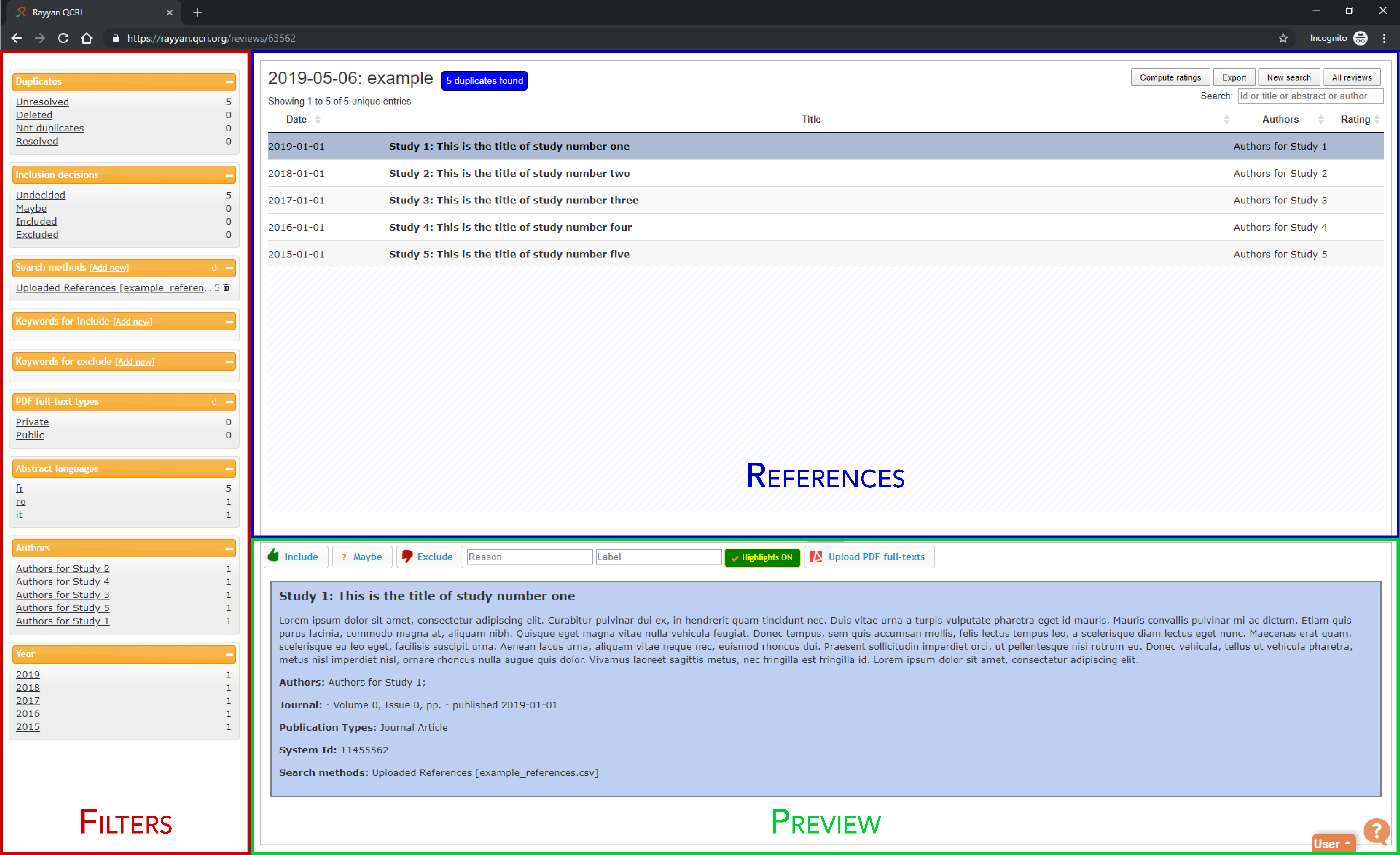
The Rayyan interface is comprised of three sections: the filters, references, and preview panels.
Rayyan works like an email client; references are selected in the references panel, and are reviewed and acted upon in the preview panel. The filters panel allows for the selection of specific subsets of references, including by year, decision, keywords, etc.
You will go through each reference (selected using the preview panel), read the title and abstract, and decide if the study should be included or excluded from the review.
2.2.2. Selecting references to review
Unfortunately, Rayyan does not automatically assign references to reviewers; each reviewer must select their own references to screen. You must set these filters each time you open Rayyan.
Each reference must be screened by two reviewers (i.e the references are dual-screened). To only show references which have 0 or 1 reviews (and thus require an additional review), use the Maximum collaborator decisions filter in the filters panel to filter the references with At most 1 decision, as shown below:
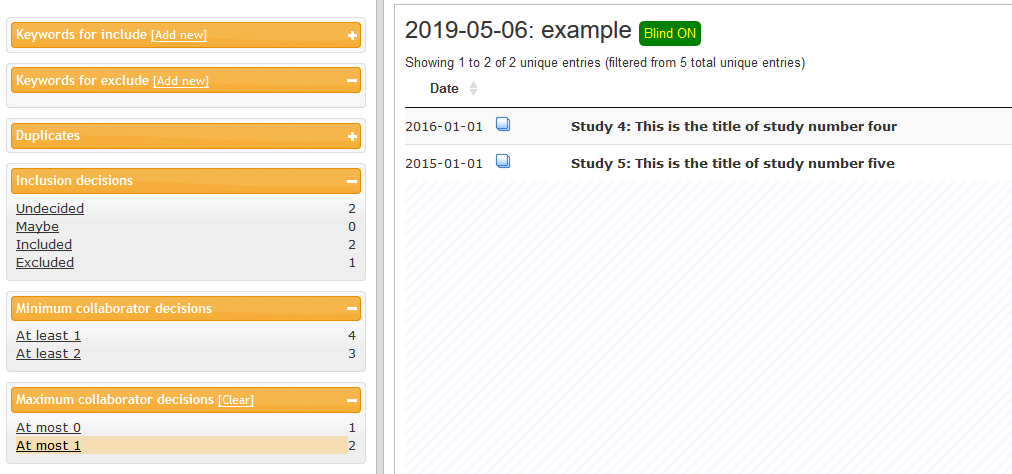
Using the ‘At most 1’ filter limits the returned references to those not already screened in duplicate.
To only show references to which your region has been assigned (e.g. for Ontario and Alberta, to facilitate conflict resolution), select your region (AB or ON) from the “Search Methods” panel, as shown below. The regions are “Uploaded References [AB.txt]“ and “Uploaded References [ON.txt]”. The region “Uploaded References [OTHER.txt]” is used for other reviewers.
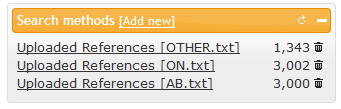
Select your region to facilitate later conflict resolution.
You must set these filters each time you open Rayyan. Beyond that, selection of references to screen is up to the partcipant; you may choose to go in order, or start from anywhere in the filtered list.
2.2.3. Making decisions
Rayyan supports three decision states: include, maybe, and exclude.
Important
Please ignore the maybe state – we will not be using maybe in this review.
After reviewing the reference, you will either choose to include the study, or exclude the study and provide a reason for exclusion.
The figure below shows an example of five references, each in a different decision state. The first two references are included – the second reference is included with a label. The third and forth references are excluded – the fourth includes a reason for exclusion. The fifth reference is marked as maybe.
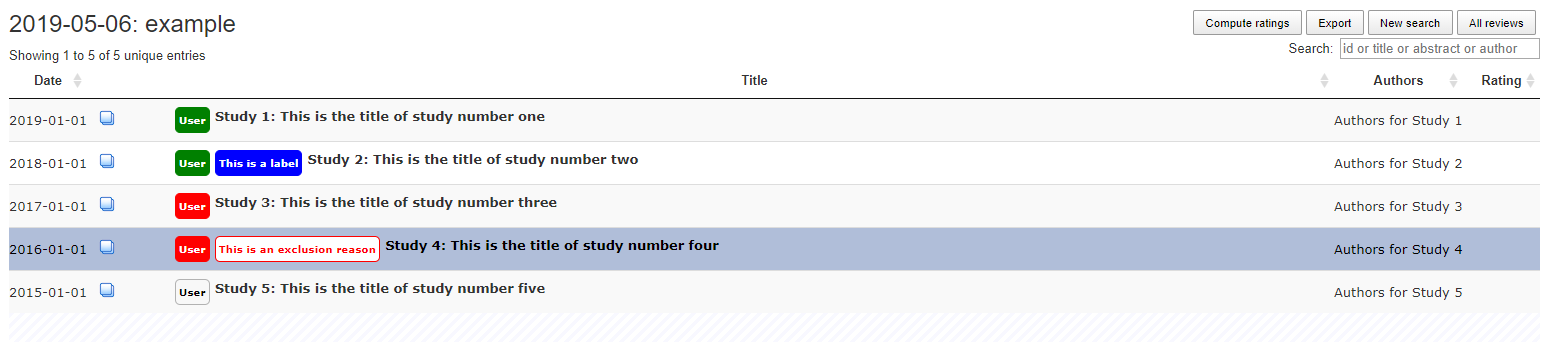
An example of each inclusion/exclusion decision state in Rayyan.
Note
Labels, are akin to reasons for exclusion, but can be used to tag included references. Both maybe and labels are not used in this review.
2.2.3.1. How do I decide?
Recall that the goal of this review is to identify any factors that influence the occurrence of resistance in our bacterial species of interest, isolated from our food-animal commodities of interest:
- Food Animal Species
- Chicken
- Cattle
- Swine
- Turkey
- Bacterial Species
- coli
- Salmonella Spp.
- Campylobacter Spp.
- Enterococcus Spp.
Determining whether a reference includes the above populations is the easy part – determining whether the reference reports the effect of a factor is more difficult. You will have to read the title and abstracts closely to determine whether or not the reference includes a factor. A key concept to keep in mind is that a reference that includes a factor must include a comparison amoung two or more groups (or report the prevalence of resistance in two more more groups, from which we can derrive a comparison).
We have developed a simple flowchart to assist in the screening process:
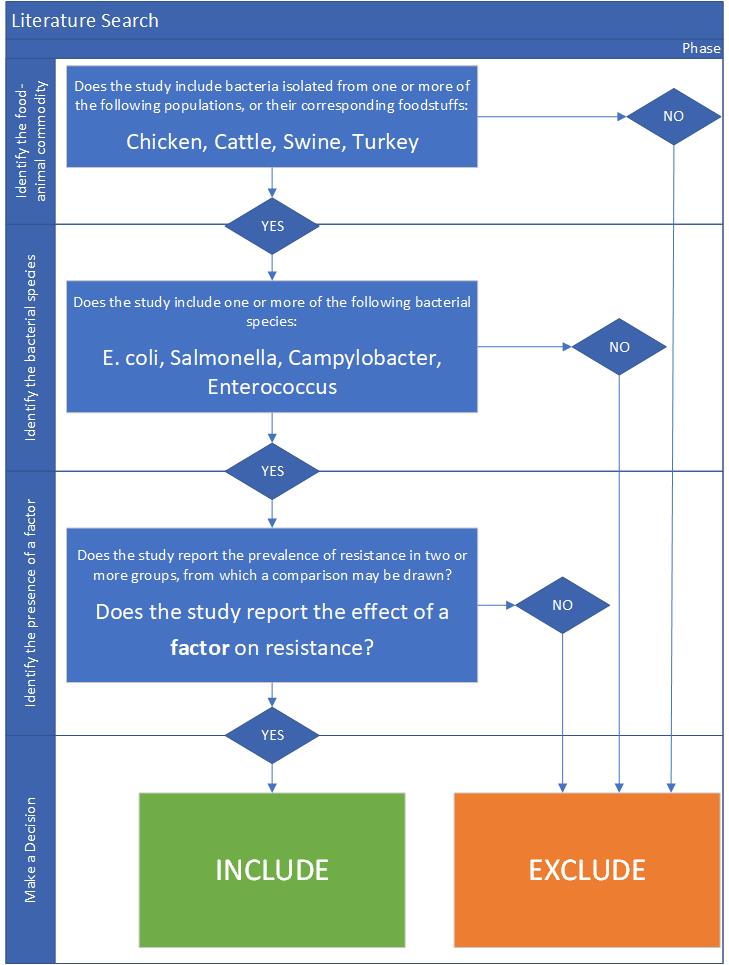
The screening process.
Each question (stage of the flowchart) is designed to be more specific than the last; we can quickly identify studies to be excluded as we work through each of these questions. And by dividing the process into discrete questions, we can define explicit reasons that studies were excluded from the review.
2.2.3.2. Using reasons
Reasons make it clear why a reference was excluded from the review. The reasons for exclusion are important metrics to report when publishing a literature review.
Unfortunately, Rayyan does not include a way of pre-populating reasons; we must add each reason as we find applicable excluded studies. Luckily, once we add a reason, it will remain in the list for easy access. We use the following exclusion reasons:
- 00. Other
- 01. Wrong Commodity
- 02. Wrong Bacterial Species
- 03. No Factor
Tip
We add numbers to the reasons because they are sorted alphabetically; adding numbers ensures they are easily accessible, and listed above the built-in reasons.
Reasons 1 through 3 correspond to the questions in the flowchart, and are organized hierarchically. If more than one reason applies, we use the first reason to exclude the reference.
Hint
For example, if the study assayed Brucella in sheep, the reference is excluded with the reason ‘01. Wrong Commodity’, despite that both reasons 1 and 2 (and potentially 3), apply.
If reasons 1 through 3 do not apply, but the reference nonetheless should be excluded, select reason ‘00. Other’.
Hint
Only use reason ‘00. Other’ where the reference is so unrelated that the flowchart is not applicable. For example, a book ‘The risk of bioterrorism from Salmonella’ may be excluded using reason 0, as there is no commodity, and it is not clear if resistance was even assayed.
2.2.4. Using the keywords highlighting feature
During screening, it may become apparent that the presence or absence of certain key words predicts reference inclusion or exclusion – or vice-versa.
For example, an abstract containing the word ‘murine’ is very likely to refer to a study conducted in mice. If your review is focused on outcomes in humans, this reference is likely to be irrelevant, and be rejected.
Caution
Keywords are simply correlated with reference inclusion or exclusion – you must still review the contents of the abstract in full to make a decision.
Rayyan includes a keywords highlighting feature which allows you to automatically highlight inclusion-related keywords in green, and exclusion-related keywords in red. This highlighting feature is enabled by default, and prepopulated with lists of automatically generated keywords. You will likely have to heavily-curate these lists; by default, Rayyan assumes you are conducting a systematic review of clinical trials, and bases the keywords on this assumption.
Tip
To disable this feature, simply toggle the large green ‘Highlights’ button in the preview panel.
You can customize your keywords in the filter panel. Delete the existing keywords from the ‘Keywords for include’ and ‘Keywords for exclude’ lists using the garbage can icon beside each term. To add new keywords, use the ‘Add new’ link in the lists’ titles. Note that the keywords must match exactly – you may need to add singular and plural versions of each keyword.
Some recommended keywords are provided below.
Include:
- Food-animal commodity names (e.g. broilers, chicken, cattle, swine, pork, beef, steak)
- Food-animal commodity adjectives (e.g. avian, bovine, porcine)
- Bacterial genus names (e.g. E. coli, Salmonella, Campylobacter, Enterococcus)
- Indications of a factor/comparison (e.g. factor, factors, comparison, effect)
Exclude:
- Unrelated food-animal commodity names or indications of human populations (e.g. dog, fish, aquaculture, public health, hospitalization)
- Unrelated bacterial genus names (e.g. Staphylococcus, Klebsiella)
- Indications of no factor/comparison (e.g. prevalence, surveillance)
2.3. FAQs
2.3.1. What should I do if the abstract is missing from Rayyan?
If the abstract is missing from Rayyan, judge inclusion based upon the title.
2.3.2. What should I do for conference proceedings?
If the reference refers to a conference proceeding, reject the reference unless the abstract indicates the proceedings are of obvious value (e.g. a proceeding for “the symposium on factors influencing antimicrobial resistance in the agri-food system”.
2.3.3. What should I do if I am unsure whether to include or exclude the reference?
Use your best judgement!
By ensuring we screen every reference twice (using a different reviewer), the likelihood of a reference being erroneously included or excluded is minimized; your counterpart is unlikely to make the same mistake (if your choice was not appropriate).
2.3.4. What happens if the reviewers are in disagreement over the inclusion status of a reference?
If the reviewers are in disagreement (i.e. are in conflict) with respect to the inclusion status of a reference (i.e. one includes, and one excludes the reference), the reviewers will resolve this disagreement at the end of the screening process. If the reviewers cannot come to an agreement (i.e. both maintain that they believe their interpretation to be correct), the conflict will be resolved by the Screening Arbitrator.