3. Git et al.
3.1. Version Control
Version control is a system in which tracks changes to files so users to know how, when, and (hopefully) why those changes were made. Whether you know it or not, you likely use an informal version control system in your every day work – albeit a bad one.
Take for example, manuscript revision – how many times have you seen a naming scheme like this?
- manuscript.docx
- manuscript_bc.docx
- manuscript_bc_cp.docxz
- manuscript_bs.docx
- manuscript_bs_cc.docx
- manuscript_af_01_01_2019.docx
Tip
A manuscript hosted in Office 365 can be edited simultaniously by an entire team!
3.2. Introduction to Git and GitHub
While common, these informal version control systems lend themselves to errors and omissions. For more complex projects, spread across files and users, a more formal solution is required. Enter Git.
3.2.1. Git
Git is a distributed version control system for tracking changes in source code during software development. In layman’s terms, Git is a system where multiple people can work on plain-text files (see here to find out what plain-text files are), merge and compare changes, and track these changes over time. Git, of course, does a lot more than that, and has incredibly powerful features that make collaborative (and importantly, simultaneous) development much easier than our rename_rename method above. But it’s not an easy system to learn, since most of the work is done on the command line.
Caution
It is important to note that Git is not designed for complex files, like Word documents or Excel spreadsheets. While it may not seem like it, these files have extraordinarily complex structures (a Word document is basically a web-page in disguise!), and the benefits of Git – being able to see small, exact changes – are lost in the noise.
3.2.2. GitHub
Luckily, there’s GitHub Desktop, which wraps Git in a nice, easy-to-use graphical wrapper (GUI). Wait you say! What is GitHub? GitHub is simply a centralized, online repository of your files – it takes Git online, connecting all of your local files and revisions with all of mine (and all of our collaborators). GitHub Desktop has many features of Git, and the ability to link to GitHub without worrying about things like managing SSH keys.
Because we have this GUI available, subsequent sections will gloss over the complexities of Git, and focus solely on practical applications achievable using GitHub and GitHub Desktop.
3.2.3. Getting Started
There are a huge number of great resources available to learn about version control systems, Git, and GitHub. Some of the best include:
3.3. Installing GitHub Desktop
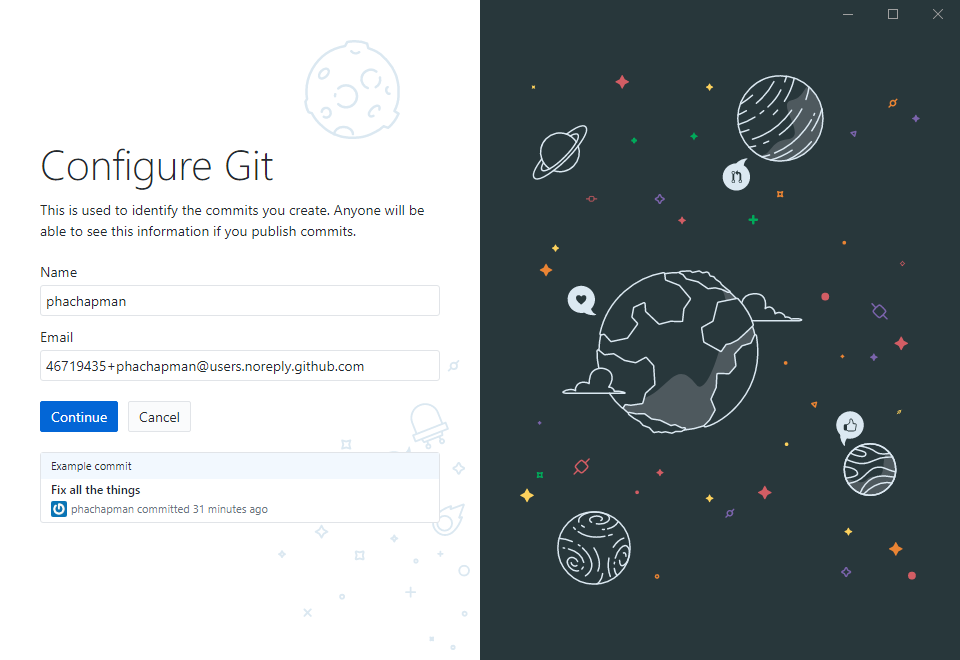
GitHub Desktop links our local installation of Git with GitHub (we’ll explore these in more depth in subsequent sections). Download GitHub Desktop here, which will include its own, self-contained version of Git. Run the installer and sign in with your GitHub account credentials. When prompted to configure Git, update your name (if incorrect). You can leave the email address as generated, to reduce notifications in your inbox.
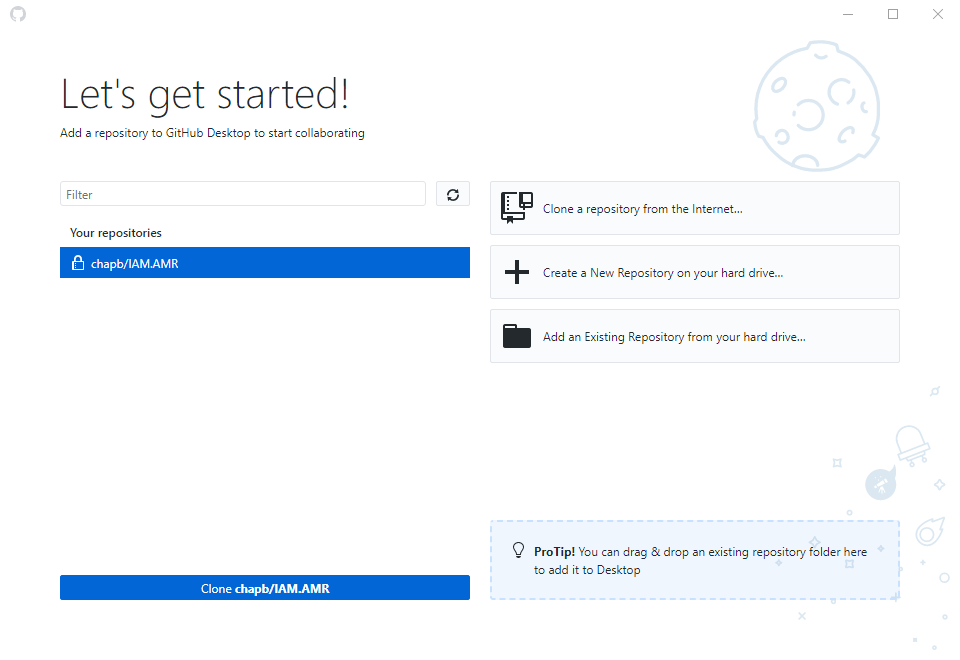
Provided you have been added as a collaborator, on the ‘Let’s get started!’ screen, the IAM.AMR repository should be listed under ‘Your repositories’.
To download the models, select the repository, and choose ‘Clone’. Now, select a local path – the directory where you’d like to keep the models – and again, choose ‘Clone’.
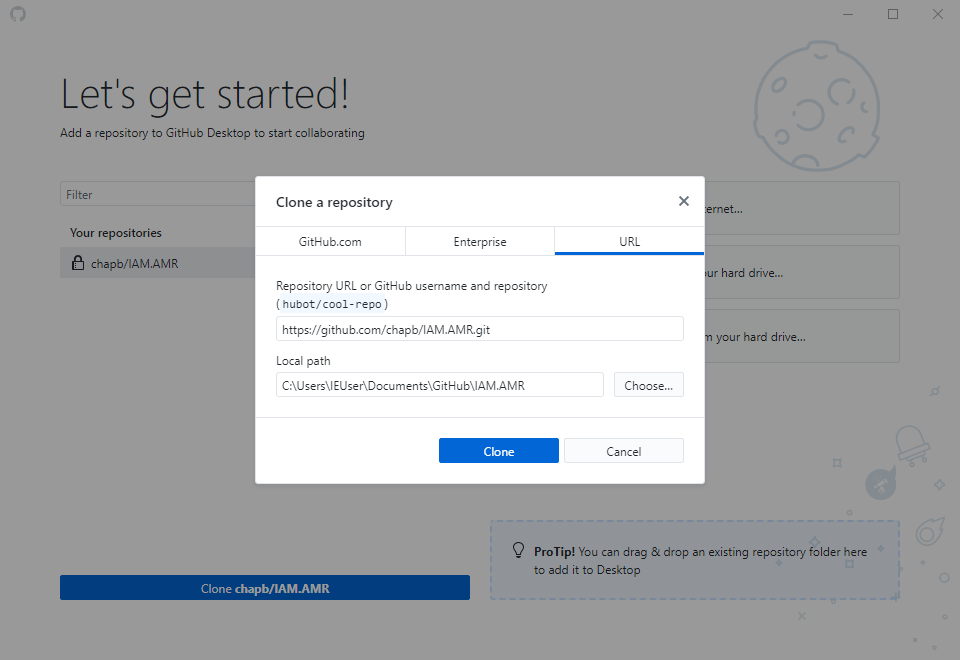
The models will then be downloaded into the directory of your choosing. You can close GitHub Desktop, or explore some of the features in subsequent chapters.